Showing posts with label Sharepoint 2010. Show all posts

Friday, August 12, 2011

Aspect oriented programming with PostSharp and SharePoint 2010

The main purpose of aspect oriented programming in today’s software development processes is to separate the so called cross cutting concerns from the applications business logic. Things like logging or exception handling are used across all layers of an application. They should always be done in the same way and should not distract developers with their complexity. Aspect oriented programming can be used to achieve these goals. The following blog post shows an example of a caching aspect implemented with PostSharp and used inside a SharePoint 2010 WebPart. For an overview of implementing aspects with PostSharp have a look at http://www.sharpcrafters.com/postsharp/documentation. If you need more information on aspect orientation read http://citeseerx.ist.psu.edu/viewdoc/download?doi=10.1.1.37.4987&rep=rep1&type=pdf or http://en.wikipedia.org/wiki/Aspect-oriented_programming.

Let’s start by creating a new Visual Studio solution. For the example I used the Visual Webpart template. After creation of the solution is finished we can directly start by creating the caching aspect. First of all a reference to the PostSharp library is needed. PostSharp comes with a library for different development environments. There is one library for Silverlight, one for developing applications with the compact framework and one for other .NET applications. I used the signed assembly for .NET 2.0. In order to make the assembly available to SharePoint we have to add it not only to the references of the project but also to the deployment package. With the new package windows in Visual Studio this can be achieved with a few clicks. Just open the package in the solution explorer. In the package window choose the ‘Advanced’ tab at the bottom:

On the following page you can add any existing assembly:

After adding the library and making the settings for deployment, we can now start to implement our aspect. PostSharp provides several base aspects that can be used to realize custom aspects. For the example I used the OnMethodBoundaryAspect. This aspect can be used to decorate a single method and contains the following base methods:

-          OnEntry
-          OnExit
-          OnSuccess
-          OnException
When you decorate a method with this aspect the preceding methods are respectively called on entering the method, on leaving the method or when an exception occurs. This makes it really comfortable to provide additional functionality for any given method. You can just write your attribute over a method and PostSharp will take care of linking the functionality of the aspect to the method. In order to achieve this, PostSharp integrates itself in the build process as a kind of post build event. That means that after building your assemblies, PostSharp takes them, searches for aspects and integrates the appropriate attribute implementation.

There are already some examples for caching aspects realized with PostSharp on the web. I used one from the sharpcrafters tutorial site. This aspect is designed for ASP.NET web applications so it also fits in the SharePoint context. Let’s have a look at the implementation and start with the OnEntry method:
public override void OnEntry(MethodExecutionArgs args)
{
    // Compute the cache key.
    string cacheKey = GetCacheKey(args.Instance, args.Arguments); 

    // Fetch the value from the cache.
    object value = HttpRuntime.Cache[cacheKey]; 

    if (value != null)
    {
        // The value was found in cache. Don't execute the method. Return
    immediately.
        args.ReturnValue = value;
        args.FlowBehavior = FlowBehavior.Return;
    }
    else
    {
        // The value was NOT found in cache. Continue with method execution, but
     store
        // the cache key so that we don't have to compute it in OnSuccess.
        args.MethodExecutionTag = cacheKey;
    }
}

The cache key for every decorated method is computed by the method name, its parameters and the concrete instance the method is executed in. This does not cover all cases, but it is sufficient for this example. With the fetched cache key, the runtime cache is accessed to provide the according value. If a value is found, this value will be returned from the method. Otherwise the computed cache key is temporarily stored in a Tags object which will be used in the OnSuccess method:
public override void OnSuccess(MethodExecutionArgs args)
{
    var cacheKey = (string)args.MethodExecutionTag;
    HttpRuntime.Cache[cacheKey] = args.ReturnValue;
}

The OnSuccess method takes the cache key that was built in the OnEntry method and stores the result of the executing method in the runtime cache. The next time the method is called with the same arguments, the aspect will provide the value directly from the cache instead of executing the whole method.
Using the caching aspect
With our caching aspect implemented we are now ready to use it. As with any attribute in .NET this is fairly easy. Just write the attribute over any method you want. In the example I had a method that returned an employee object from a SharePoint list for a given ID:
[Caching]
private static Employee GetEmployee(string id)
{
    using (var web = SPContext.Current.Web)
    {
        var list = web.GetList("/Lists/Employees");
        var item = list.GetItemById(Int32.Parse(id));

        if(item != null)
        {
            var result = new Employee
                                {
                                    Name = item["Title"].ToString(),
                                    Team = item["Team"].ToString(),
                                    Contribution = (double) item["Contribution"]
                                    //... properties left out for brevity
                                };
            return result;
        }
    }
    return null;
}

The retrieval of an employee happens only on the first call of the method. On the second call with the same ID the employee object is directly from the cache.

Friday, June 24, 2011

LightSwitch and Sharepoint 2010

LightSwitch is a rapid application development tool that can be used to easily build applications. Given a data source, like SQL Server, it generates user interface components and a full running application to edit data. This post shows how to use a Sharepoint list as data source and how to create custom user interface fields and implement validation.

Connecting to Sharepoint lists
When you start LightSwitch you’re likely to see a development environment you’re already used to: Visual Studio. The IDE starts with the LightSwitch designer which gives you the possibility to either create a new table or to connect to an external data source. You may use a SQL Server database, a Sharepoint list or WCF RIA Services.


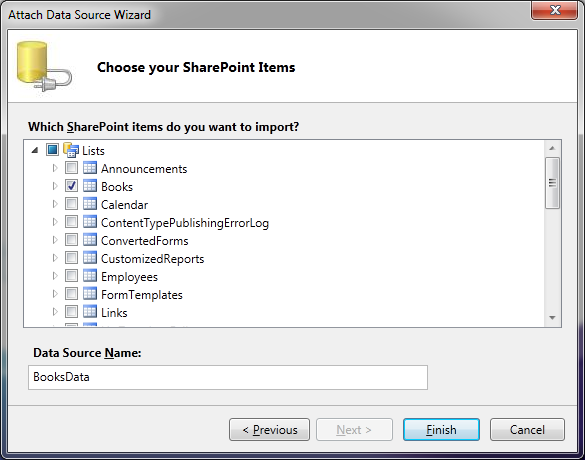
For the example in this post we’ll choose a Sharepoint list. The example list contains a collection of books with fields like title, author, year and ISBN. In the next wizard step you are asked to provide the Sharepoint site address and the authentication credentials the LightSwitch application will use later on to connect to the list data. You have the choice between windows authentication or the specification of a separate user account. This enables scenarios where you have a service account to access a Sharepoint list and don’t allow any other users to access the list directly via Sharepoint. They must use your application. In the final step, you will be presented with an overview of all available Sharepoint lists in the given site:


You may choose as many lists as you like. LightSwitch automatically detects dependencies between lists and imports all referenced lists as well. In the example the UserInformation will be automatically imported because the list of books contains the ‘created by’ and ‘modified by’ fields which hold a reference to a certain user.

After selecting the required lists you can finish the wizard. LightSwitch generates all the needed resources to access the list data. If you are interested, have a look in the file system after generation has finished. There you’ll find a lot of files. For data retrieval and communication with Sharepoint binary XML with WCF RIA Services is used. 

Building an application
In the solution explorer of the newly generated solution you see a logical view of the resources.


The logical view displays items to open the according designers either for editing the data sources or the visual screens used in the final application. You can switch to file view if you need to directly manipulate a file.

A click on the Books1 element opens the data source designer. The designer displays the data source in a table layout showing you all the fields of the source. In addition, it shows the dependencies to other source tables. At the top of the designer is a tool bar with possible actions. Here you can add new relationships, queries or user interface screens. In order to display the data in the application we’ll add a new screen. Here you have the choice between several predefined view templates:


When creating a new screen LightSwitch automatically generates all the needed user interface elements and binds all data fields to them. So, after creating the screen, you have a full functional application without writing a single line of code. That’s pretty cool, isn’t it? Within the running application you’re now able to edit list entries or even add new ones.

Add field validation
In the sample list each book has an ISBN field. This field is of type string with a max length of 13. These are the restrictions you can easily define inside the Sharepoint list. But there are other rules for a valid ISBN number. It needs to have a special appearance and the last digit is a checksum which needs to be computed. Doing these kinds of validation directly inside the list is possible but rather difficult to achieve. Why not doing it in our LightSwitch application? We just need to open the data source designer for our books list. In the tool bar at the top you find a drop down button named ‘Write code’. When you select the appropriate field in the data source table and open the drop down you should see an entry that contains the field name plus underscore plus ‘Validate’ (e.g. ISBN10_Validate). Clicking on that entry opens up a code file with a newly generated method stub for validating the field:

partial void ISBN10_Validate(EntityValidationResultsBuilder results)
{
}

This method will be called whenever the user changes the field inside the user interface and leaves the according field. As a parameter you get an EntityValidationResultsBuilder. This class provides several methods to add error messages that will be shown to the user after validation. The implementation of the method is intentionally left blank for brevity.
In the user interface, if the user enters an invalid ISBN, a warning will be shown with the error message you provide in the validation method:


Adding computed fields
Sometimes you need a computed field in your data source that you want to display in the user interface. As mentioned earlier the books list contains the standard Sharepoint list fields ‘created by’ and ‘modified by’. In the LightSwitch data source designer they are of type UserInformationList so that in the UI you will not see the actual name of the author of the list element. You only see if it is a person or a group but what you really need is the name. In order to achieve this you can add a computed property to the data source. In the sample it is called ‘Owner’. Again in the ‘Write code’ drop down you find a method for the computation of the newly added field. Within that method you get access to all other fields of the data source in order to compute the needed value. In this case I just used the ‘UserName’ property of the ‘created by’ field:

partial void Owner_Compute(ref string result)
{
    // Set result to the desired field value
    result = this.CreatedBy.UserName;
}

You cannot set the value of the owner field directly. That’s why a reference to the value is given a parameter to the method.
In the screen you can now easily add the new field to the user interface and it will be displayed with the computed value when running the application.

Thursday, October 28, 2010

Model View Presenter Pattern with Sharepoint Service Locator

After playing around with the Sharepoint 2010 Guidance Package, I decided to implement a MVP pattern within a WebPart using the ServiceLocator component. Let’s start by creating a new Visual WebPart with the according project template in Visual Studio 2010.

This template is a real improvement and generates all components necessary for a Visual WebPart, especially an ASP.NET user control (ASCX), which can be designed using the visual editor in Visual Studio. The following image shows the project structure after executing the template:

The project contains nearly all elements we need for MVP. The WebPart class (VisualWebPart1) will become our model. Actually it’s more kind of a controller and initializes the view and also provides access to data. Of course, the UserControl will be the view. So all we need additionally is the Presenter and some interfaces. Let’s create the interfaces first. We create one for the WebPart class. In the example the interface provides just one method called GetNames, which returns a List of strings just for testing:
public interface IVisualWebPart1
{
    System.Collections.Generic.IList<string> GetNames();
}

We also need an interface for the View, so that the Presenter can call the appropriate methods on it without knowing the concrete implementation. In the example the View has a Fill method, which accepts a list of strings:
public interface IVisualWebPart1UserControl
{
    void Fill(System.Collections.Generic.IList<string> names);
}

With that interfaces we can now define our Presenter. I will create a generic base class for the Presenter, which can be reused in other projects:
public class Presenter<IView, IModel>
{
    public Presenter()
    {
        IServiceLocator serviceLocator = SharePointServiceLocator.GetCurrent();
        Model = serviceLocator.GetInstance<IModel>();
    }

    public Presenter(SPSite site)
    {
        if (site != null)
        {
            IServiceLocator serviceLocator =
SharePointServiceLocator.GetCurrent(site);
            Model = serviceLocator.GetInstance<IModel>();
        }
    }

    protected IModel Model { get; set; }

    public IView View { get; set; }

    public virtual void OnViewInitialized() { }

    public virtual void OnViewLoaded() { }
}

The Presenter is the connection between the Model and the View. It expects to get the Model by using the Sharepoint Service Locator. The View property will be set by the View itself upon its creation. The derived Presenter in the example (VisualWebPart1Presenter) uses IVisualWebPart1 as Model and IVisualWebPart1UserControl as View. It overrides OnViewInitialized and calls the Fill method of the View with the list provided by the Model. So all we need to do know is to create the Presenter in the View and call its OnViewInitialized method. The View gets a property of type VisualWebPart1Presenter:
VisualWebPartMVPPresenter _presenter;
VisualWebPartMVPPresenter Presenter
{
    get
    {
         if (_presenter == null)
         {
            _presenter = new VisualWebPartMVPPresenter(SPContext.Current.Site);
            _presenter.View = this;
        }
        return _presenter;
    }
}

We’re nearly done. The last thing to do is to register the Model with Sharepoint Service Locator. As said in my previous post, I will use a feature receiver to do that. A right click on Feature1.Feature opens the context menu and there you find an option to add an event receiver. Visual Studio creates a class derived from SPFeatureReceiver and also adds the important method overrides which you only need to uncomment. Within the FeatureInstalled method add the following code:
using (SPSite site = new SPSite("Add your site URL"))
{
    IServiceLocator serviceLocator = SharePointServiceLocator.GetCurrent();
    IServiceLocatorConfig typeMappings =
serviceLocator.GetInstance<IServiceLocatorConfig>();
    typeMappings.RegisterTypeMapping<VisualWebPart.IVisualWebPart1,
VisualWebPart.VisualWebPart1>();
}

Now we can give it a try. Deploy the WebPart and add it to the WebPart gallery within Sharepoint. When you place it on a site you should be able to see the names list from the model class inside a list box.

The sample project can be downloaded here.

Monday, October 25, 2010

Sharepoint Guidance Package - ServiceLocator

I recently took a look at the Sharepoint Guidance Package. The package supports Sharepoint developers by providing guidance and pre-defined components. Among these components you find the Service Locator, which can be used to register and find services within Sharepoint. A service may be any class. The Service Locator provides the ability to register types at SPSite and SPFarm level. Types are registered with their Interface used as key:
IServiceLocator serviceLocator = SharePointServiceLocator.GetCurrent();
IServiceLocatorConfig typeMappings =
serviceLocator.GetInstance<IServiceLocatorConfig>();
typeMappings.RegisterTypeMapping<IServiceInterface,IServiceImplementation>();
You can retrieve the instance of the Locator anytime by using a static method. Then you get the existing type mappings and add your own to it. You can have the same types on SPFarm and SPSite level. When searching for a type, the locator first searches at the current site and proceeds to the farm level, if no proper type was found.
You may retrieve a type the following way:
IServiceLocator serviceLocator = SharePointServiceLocator.GetCurrent();
ServiceImplementation service = serviceLocator.GetInstance<IServiceInterface>();
There's one thing you have to pay attention, when using the Service Locator and registering types. The Locator accesses the Sharepoint web application settings. To access these settings, it needs elevated privileges. So if you try to register types from within Webparts or controls, that are located on content sites, you will get a security exception. There are two workarounds for that. My preferred one is to use a Feature Receiver and overwrite the feature installed event. Just add an Event Receiver to the existing feature in your project or add a new feature.The installed event will be called, when the feature is installed on the Sharepoint site or farm, which requires an account with elevated privileges. So within the event you can do all your type registering without running in a security exception. The second workaround is to create a website inside the central administration. Have a look at Deploy an Application Page to Central Administration for that solution.