Friday, June 24, 2011

LightSwitch and Sharepoint 2010

LightSwitch is a rapid application development tool that can be used to easily build applications. Given a data source, like SQL Server, it generates user interface components and a full running application to edit data. This post shows how to use a Sharepoint list as data source and how to create custom user interface fields and implement validation.

Connecting to Sharepoint lists
When you start LightSwitch you’re likely to see a development environment you’re already used to: Visual Studio. The IDE starts with the LightSwitch designer which gives you the possibility to either create a new table or to connect to an external data source. You may use a SQL Server database, a Sharepoint list or WCF RIA Services.
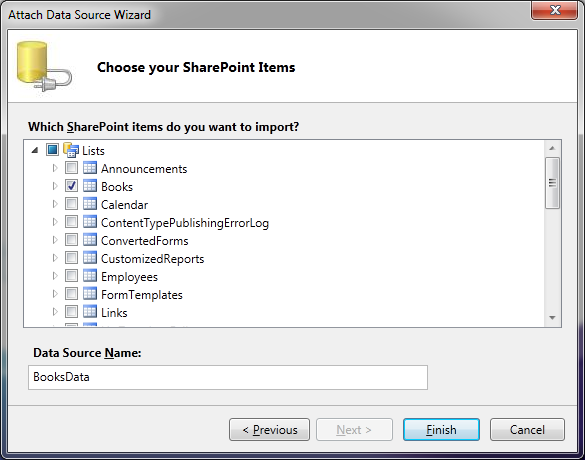

For the example in this post we’ll choose a Sharepoint list. The example list contains a collection of books with fields like title, author, year and ISBN. In the next wizard step you are asked to provide the Sharepoint site address and the authentication credentials the LightSwitch application will use later on to connect to the list data. You have the choice between windows authentication or the specification of a separate user account. This enables scenarios where you have a service account to access a Sharepoint list and don’t allow any other users to access the list directly via Sharepoint. They must use your application. In the final step, you will be presented with an overview of all available Sharepoint lists in the given site:


You may choose as many lists as you like. LightSwitch automatically detects dependencies between lists and imports all referenced lists as well. In the example the UserInformation will be automatically imported because the list of books contains the ‘created by’ and ‘modified by’ fields which hold a reference to a certain user.

After selecting the required lists you can finish the wizard. LightSwitch generates all the needed resources to access the list data. If you are interested, have a look in the file system after generation has finished. There you’ll find a lot of files. For data retrieval and communication with Sharepoint binary XML with WCF RIA Services is used. 

Building an application
In the solution explorer of the newly generated solution you see a logical view of the resources.


The logical view displays items to open the according designers either for editing the data sources or the visual screens used in the final application. You can switch to file view if you need to directly manipulate a file.

A click on the Books1 element opens the data source designer. The designer displays the data source in a table layout showing you all the fields of the source. In addition, it shows the dependencies to other source tables. At the top of the designer is a tool bar with possible actions. Here you can add new relationships, queries or user interface screens. In order to display the data in the application we’ll add a new screen. Here you have the choice between several predefined view templates:


When creating a new screen LightSwitch automatically generates all the needed user interface elements and binds all data fields to them. So, after creating the screen, you have a full functional application without writing a single line of code. That’s pretty cool, isn’t it? Within the running application you’re now able to edit list entries or even add new ones.

Add field validation
In the sample list each book has an ISBN field. This field is of type string with a max length of 13. These are the restrictions you can easily define inside the Sharepoint list. But there are other rules for a valid ISBN number. It needs to have a special appearance and the last digit is a checksum which needs to be computed. Doing these kinds of validation directly inside the list is possible but rather difficult to achieve. Why not doing it in our LightSwitch application? We just need to open the data source designer for our books list. In the tool bar at the top you find a drop down button named ‘Write code’. When you select the appropriate field in the data source table and open the drop down you should see an entry that contains the field name plus underscore plus ‘Validate’ (e.g. ISBN10_Validate). Clicking on that entry opens up a code file with a newly generated method stub for validating the field:

partial void ISBN10_Validate(EntityValidationResultsBuilder results)
{
}

This method will be called whenever the user changes the field inside the user interface and leaves the according field. As a parameter you get an EntityValidationResultsBuilder. This class provides several methods to add error messages that will be shown to the user after validation. The implementation of the method is intentionally left blank for brevity.
In the user interface, if the user enters an invalid ISBN, a warning will be shown with the error message you provide in the validation method:


Adding computed fields
Sometimes you need a computed field in your data source that you want to display in the user interface. As mentioned earlier the books list contains the standard Sharepoint list fields ‘created by’ and ‘modified by’. In the LightSwitch data source designer they are of type UserInformationList so that in the UI you will not see the actual name of the author of the list element. You only see if it is a person or a group but what you really need is the name. In order to achieve this you can add a computed property to the data source. In the sample it is called ‘Owner’. Again in the ‘Write code’ drop down you find a method for the computation of the newly added field. Within that method you get access to all other fields of the data source in order to compute the needed value. In this case I just used the ‘UserName’ property of the ‘created by’ field:

partial void Owner_Compute(ref string result)
{
    // Set result to the desired field value
    result = this.CreatedBy.UserName;
}

You cannot set the value of the owner field directly. That’s why a reference to the value is given a parameter to the method.
In the screen you can now easily add the new field to the user interface and it will be displayed with the computed value when running the application.

Wednesday, May 18, 2011

WPF Toolkit DataGrid – Conditional Formatting

Often you may want to highlight certain data entries inside a datagrid according to given conditions. Imagine displaying business sales. Here you may want to highlight all rows that don’t reach a certain amount in the corresponding value column in order to get a quick overview. That is where conditional formatting comes into play. 

This post explains a possibility to achieve conditional formatting inside a WPF Toolkit Datagrid using styles and triggers. It will focus on formatting rows or just single cells. This is achieved by adding style information to the datagrids row and cell style at runtime. The entire style will be generated in code. If you just need some XAML to get you started doing conditional formatting, scroll down and use the XAML snippet.  Let’s first create some building bricks for our solution.
The Condition
It’s obvious that we need to define the condition in any way to get conditional formatting. According to your data you may have lots of conditions you may need to filter at. In order to demonstrate the concept I will use numeric values. Again there is a lot that you can compare using numbers. The following enumeration defines the most common operations:

public enum NumericOperator
{
    //A equals B
    Equals = 1, 
    //A is greater than B
    GreaterThan = 2,
    //A is smaller than B
    SmallerThan = 4, 
    //A is greater or equals B
    GreaterThanEquals = 8,
    //A is smaller or equals B
    SmallerThanEquals = 16,
}
A type of NumericOperator can be used to define the comparison operator. Now we need the values to be compared. The first value comes from the underlying objects that are displayed in the grid. More specifically it is the value of a property from the bound object. For simplicity we define where to find that value by just passing the name. This is acceptable because I will use the name inside a binding element so no extra work is required. The second value must be provided to the formatter by just passing the value itself. This is a static value set by the user. To sum it up, the following parameters need to be passed to the formatter in order to define a condition:
-          A value of the NumericOperator enumeration
-          The name of a property of the underlying object
-          The compare value
The Conditional Formatter
The formatter receives the condition parameters defined above and a reference to the grid:

new DataGridConditionalRowFormatter(this.dataGrid, "Price",
NumericOperator.GreaterThan, "10")
    {
        ConditionalBackgroundColor = Colors.OrangeRed,
        ConditionalTextColor = Colors.White,
        NormalBackgroundColor = Colors.LightGreen
    };

At runtime it generates a style object and applies it to the appropriate style property of the grid (e.g. RowStyle or CellStyle). The XAML code it produces looks similar to the following snippet:

<Style TargetType="DataGridCell" >
  <Style.Triggers>
    <DataTrigger Binding="{Binding Price,
    Converter=NumberToBoolConverter}" Value="True">
      <Setter Property="Background" Value="OrangeRed"/>
    </DataTrigger>
    <DataTrigger Binding="{Binding Price,
    Converter=NumberToBoolConverter}" Value="False">
      <Setter Property="Background" Value="White"/>
    </DataTrigger>
  </Style.Triggers>
</Style>

It uses DataTriggers to set the background color of a row or cell if the result of the binding evaluates to true and back to a standard color if it evaluates to false. Therefore converters have to be used in order to evaluate the condition and return a boolean value. If you use a boolean property as binding source than actually no converter is needed.

I started a small codeplex project with my solution where you can download a library containing a conditional row and cell formatter that are able to do numeric, string and boolean evaluation (see pictures below). As far as my spare time allows it I will extend the library with additional features. Any feedback is very welcome.

Conditional row formatting: rows with a price greater ten are highlighted
Conditional cell formatting: names that contain "1" are highlighted

Tuesday, May 10, 2011

Injecting XML Serialization for formatting decimal properties

When serializing objects that contain properties with type of decimal, the .NET XmlSerializer writes them to the resulting XML file exactly as they are specified in your program code. That means that if you assign a value of 5 then you will get the following XML from the serializer:

<Price>5</Price>

If you instead assign 5.00 you will receive the following output:

<Price>5.00</Price>

In this behavior the decimal type is different to all other numeric value types (e.g. double). For those of you who are interested at details you may have a look at comnumber.cpp which is the underlying Win32 API file used for formatting numbers. But that’s not the focus of this blog entry. I will just show one possibility to inject some additional behavior in order to format all the decimal properties you want formatted. This solution takes into account that you already have some code and objects you need to serialize and therefore tries to make as little changes to existing code as possible.

You can either tell the serializer to format all decimal properties it finds on an object or you may give it the chance to decide itself which properties to format and which not. The first approach requires no changes within your objects and is a lot easier. But if you want only certain properties to be formatted you must mark these properties accordingly. In order to do this we firstly define a custom attribute like follows:

[AttributeUsage(AttributeTargets.Property)]
public class DecimalFormatterAttribute : Attribute
{
    public DecimalFormatterAttribute(string formatString)
    {
        Format = formatString;
    }

    public string Format { get; private set; }
}

The attribute simply gets a user defined format string that will later be used to format the decimal value of the decorated property. With the AttributeUsage attribute we tell the compiler that our attribute is only valid on properties. With that attribute set up you can no go and decorate all the properties you want to be formatted by the serializer:

[DecimalFormatter("0.00")]
public decimal Price { get; set; }

To write out simple value types the XmlSerializer uses as type of XmlSerializationPrimitiveWriter. It would be the easiest way to extend this writer and use your own class for formatting. But due to its protection level you can’t do this. So the only thing one can do is to set the value of a given decimal property according to the format string specified within our custom property before serializing the object. That means that before we call XmlSerializer.Serialize(…) we need to format our decimal properties. There are a number of ways in which you can achieve this. I will present two of them here. Both solutions don’t require great code changes.

1. Custom serialization class

In a custom class you specify a Serialize and a Deserialize method. Both methods route their calls to an internal field of type XmlSerializer. In the Serialize method additional logic is executed before the call to XmlSerializer.Serialize:

public void Serialize(Stream stream, object o)
{
    var type = o.GetType();
    //get all public properties of o
    var properties = type.GetProperties();
    if (properties.Length > 0)
    {
        foreach (var propertyInfo in properties)
        {
            //apply only to properties of type decimal
            if (propertyInfo.PropertyType.Equals(typeof (decimal)))
            {
                //try to get DecimalFormatterAttribute attribute
                object[] formatterAttribute =
                    propertyInfo.GetCustomAttributes(
                                             typeof (DecimalFormatterAttribute), false);

                if (formatterAttribute.Length == 1)
                {
                    string format =
((DecimalFormatterAttribute)
formatterAttribute[0]).Format;
                    var value = (decimal) propertyInfo.GetValue(o, null);
                    var formattedString = value.ToString(
format, NumberFormatInfo.CurrentInfo); 

                    propertyInfo.SetValue(o,
decimal.Parse(formattedString), null);
                }
            }
        }
    }
    serializer.Serialize(stream, o);
} 

The method uses reflection to get all properties of the given object. If you don’t specify any BindingFlags value in the call to Type.GetProperties then all public properties will be retrieved by default. For each property – if it is of type decimal – we try to get our custom attribute and if we find it we apply it to the ToString method of the property value. Afterwards we set the property value by parsing the generated string. Of course this is kind of a little trick but I think it’s acceptable here. When we are finished formatting all decimal properties we simply need to call the Serialize method of the XmlSerializer.
The disadvantage of this solution is that you need to change all existing calls to XmlSerializer.Serialze you may already have in your application in that way that you must use a different class.

2. Use an extension method for XmlSerializer

If you don’t want a separate class encapsulating an XmlSerializer then you can use an extension method: 

public static class XmlSerializerExtension
{
    public static void SerializeDecimal(
this XmlSerializer serializer, Stream stream, object o)
    {
       …  
    }
} 

The method implementation is the same as above. Unfortunately you cannot name the extension method Serialize because the XmlSerializer class already contains that method. So slightly rename your method and you are able to use it instead of XmlSerializer.Serialize:

var s = new XmlSerializer(typeof (Product));
s.SerializeDecimal(stream, p);
 
Again you need to change at least the method call within your existing code. It’s purely a matter of taste which of the presented methods to choose.